If you’re juggling multiple campaigns, ad variations, and constant optimization requests, Google ads tip#11 is the shortcut most teams miss: use Google Ads Editor to make high-volume changes faster, offline, and with built-in checks before anything goes live.
What We Learned Running This Type of Campaign
We used to handle routine updates inside the Google Ads web interface—one campaign at a time—until the workload started to break our workflow. Once we switched to Google Ads Editor for our day-to-day PPC operations, the biggest shift wasn’t just speed. It was reviewability. We could download a snapshot of our account, apply changes in a structured way, and then upload when we were confident everything looked right.
In practice, this changed how we run optimization cycles. Instead of reacting to requests immediately, we batch updates (bids, ad copy variants, extensions, and keyword adjustments), check for policy and data issues, and then publish updates in a controlled window. That’s especially useful for agencies and teams supporting multiple client accounts, where consistent processes matter more than individual heroics.
Main Benefits of Google Ads Editor (Google ads tip#11)
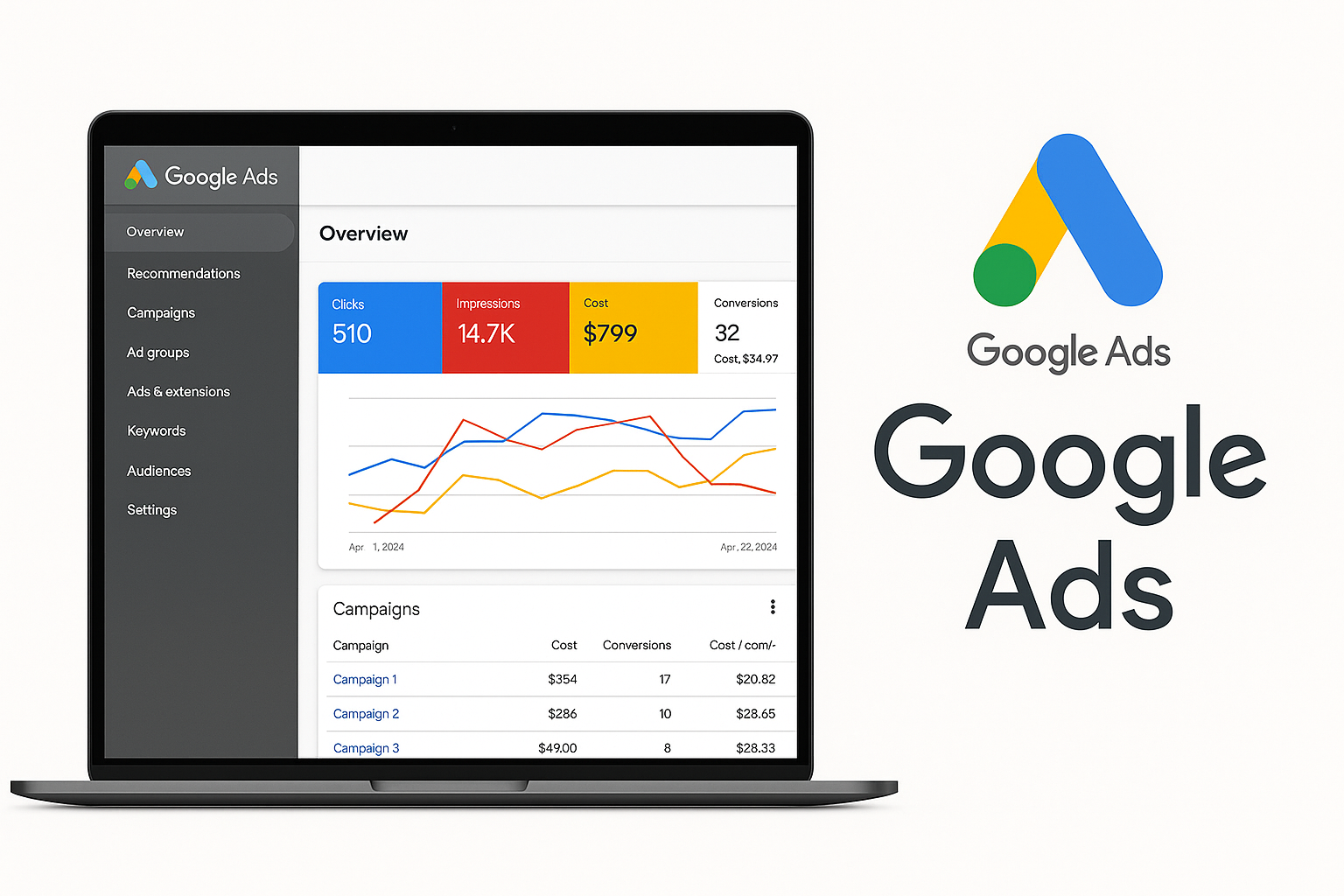
Google Ads Editor is a desktop application built for managing changes at scale. The workflow typically looks like this: download account data, edit offline, and then upload changes back to Google Ads. For our PPC work, that workflow created two major advantages: bulk control and lower risk.
1) Bulk changes without losing accuracy
When you need to update many items—like adjusting bids across multiple ad groups or revising ad text templates—doing it manually in the web UI is slow and error-prone. Google Ads Editor helps us apply changes to large sets of entities while maintaining a clear record of what was modified.
2) Offline work that keeps projects moving
Offline editing is a game-changer when we’re traveling, dealing with intermittent connectivity, or working within tight deadlines. We can download the current state, work on edits locally, and upload when we’re ready—so our optimization doesn’t stall.
3) Error checks before publishing
One of the most practical parts of Google ads tip#11 is the ability to catch problems early. Google Ads Editor can surface issues such as missing fields, disapproved ad concerns, or other formatting problems before we push updates live. That means fewer “why didn’t this upload?” moments and fewer last-minute fixes.
4) Copy and duplicate for speed
We’ve found that duplication is especially valuable when campaigns follow a consistent structure—such as location-based variations or themed ad groups. Instead of rebuilding from scratch, we copy a campaign or set of assets, then fine-tune the pieces that differ per market.
5) Filters to find what matters
Large accounts don’t fail because teams lack ideas; they fail because it’s difficult to find the exact set of items to edit. Advanced filters help us locate specific campaigns, ads, keywords, or statuses so we can act precisely instead of broadly.
How We Use Google Ads Editor in a Real PPC Workflow
Here’s the practical process that made the biggest difference for us. We treat Google Ads Editor like our “editing workspace,” while the Google Ads account becomes the “publishing workspace.”
- Start with a fresh download: We download the latest account snapshot in Google Ads Editor so we don’t edit outdated data.
- Plan the change set: We group tasks by goal (for example: visibility improvements, efficiency tweaks, or ad refreshes).
- Apply bulk edits carefully: We use bulk editing for large, consistent changes (bids, ad text swaps, URL updates), then spot-check affected entities.
- Preview and validate: We run through editor checks and confirm final values match our intent before uploading.
- Upload at the right time: We publish updates when we can monitor performance and catch issues quickly if they appear.
If you want the “why” behind cost control and performance stability, pair this workflow with google ads tip 1 never run good ad without a cost cap. It complements Editor-based bulk work by ensuring your improvements don’t accidentally spend in ways you didn’t plan.
Best Practices We Follow for Google ads tip#11
Google Ads Editor is powerful, but the best results come from disciplined habits. We keep the workflow consistent so that even when the task list is long, the quality stays high.
- Sync before you edit: Always download the latest version before making changes.
- Use structure for clarity: Organize campaigns and ad groups so bulk edits stay predictable.
- Preview before upload: Always confirm the final state of ads, keywords, and extensions.
- Test safely: When trying new ad variations or structures, we validate via offline edits before publishing changes.
- Track what changed: We review edited sections to ensure nothing unintended slipped in during bulk operations.
Important warning: Bulk editing is fast, but it can also amplify mistakes. If you’re making changes across many campaigns, double-check match types, final URLs, and ad text formatting before uploading—one incorrect template swap can affect hundreds of ads.
Where Google Ads Editor Fits With Automation
As Google Ads becomes more automated, teams still need control over execution details. Google Ads Editor helps us manage the elements that require intentional planning: account structure changes, large-scale ad updates, and careful adjustments that are easier to review offline.
We’ve also found that it reduces “automation blind spots.” When performance shifts suddenly, we can compare what we changed and when—because the editing workflow is more visible. If you suspect your account setup is making it harder for you to interpret results, also read google ads tip 3 google ads fools you to avoid common decision traps while you optimize.
Pro Tip to Get More from Google Ads Editor (Google ads tip#11)
Pro tip: Use Google Ads Editor to batch your optimization tasks into “reviewable groups.” For example, instead of doing ten different changes in a single upload, we separate them into: (1) structural edits, (2) ad copy refreshes, and (3) bidding/keyword adjustments. This makes QA faster and helps you pinpoint what caused performance movement.
Conclusion & CTA
When you apply Google ads tip#11 correctly, Google Ads Editor becomes more than a download-and-upload tool—it becomes your control system for bulk PPC updates. If you want faster workflows, fewer mistakes, and more confidence during campaign changes, start by using the download → edit offline → preview → upload process for your next optimization sprint. Then keep improving your process by pairing it with google ads tip 2 audience observation zero cost tremendous benefits to refine targeting decisions without slowing down execution.
Frequently Asked Questions
Is Google Ads Editor still worth using in 2026 if we already use scripts and automation?
Yes. Automation can manage bidding and certain optimization behaviors, but it doesn’t replace the need for reliable, reviewable account edits. Google Ads Editor is ideal for bulk changes (ads, keywords, bids, extensions) and for running a controlled workflow offline. That control is especially valuable for agencies and teams that must maintain accuracy across many campaigns and clients.
What kinds of changes are safest to make using Google Ads Editor?
The safest changes are ones that follow a consistent pattern across many entities—such as updating a URL template, applying a bid adjustment across a targeted set, refreshing ad text across an ad group, or duplicating a campaign structure for new locations. We still spot-check outputs, but structured edits reduce the chance of accidental inconsistencies.
How do we avoid common errors when uploading from Google Ads Editor?
We prevent errors by downloading the latest account snapshot before edits, using preview/validation checks, and reviewing the final values for any item that changed due to a template or bulk rule. We also avoid mixing unrelated edits into one upload when possible, so if something doesn’t behave as expected, we can isolate the cause quickly.