

How to Set Up Google Ads Conversion Tracking on Shopify (Step-by-Step Guide)
How to Set Up Google Ads Conversion Tracking on Shopify (Step-by-Step Guide)
If you run an online store, getting accurate data from Google Ads conversion tracking Shopify is essential. Without proper tracking, you never really know which campaigns, keywords, or ads are actually driving sales. In this guide, you’ll learn how to set up conversion tracking correctly, improve your ROI, and optimize your Shopify store for profitable growth.
Why Google Ads Conversion Tracking Matters for Shopify Stores
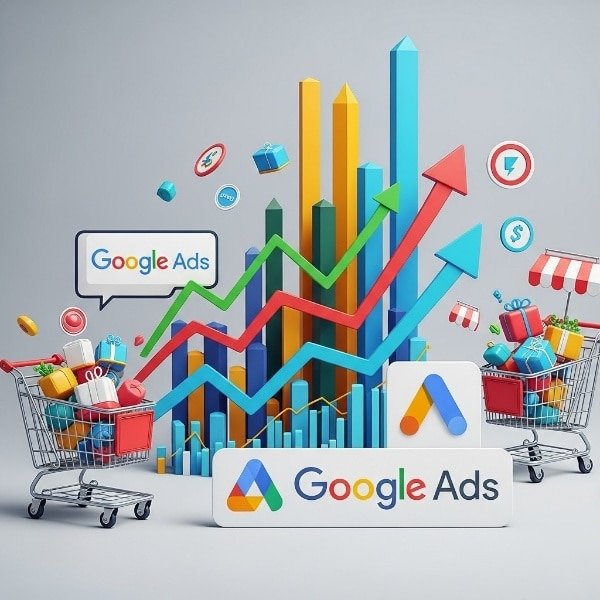
Every click on your ad costs money. With accurate Shopify Google Ads conversion tracking, you can:
- See which campaigns generate real sales and revenue
- Identify profitable keywords and ad groups
- Use smart bidding strategies like Target ROAS and Maximize Conversions
- Stop wasting budget on non-converting traffic
Without conversion tracking, you’re essentially running ads blind. Shopify and Google Ads can work together as a powerful performance machine, but only if events like purchase, add to cart, and begin checkout are tracked correctly.
Key Concepts: How Conversion Tracking Works with Shopify and Google Ads
Before we dive into the setup, it helps to understand the basic components of Google Ads conversion tracking Shopify integration:
- Global site tag / Google tag (gtag.js) – The base tag that fires on every page of your store.
- Conversion action – The specific event you want to track (e.g., “Purchase – Shopify”).
- Conversion event snippet – The piece of code that fires on the “Thank You” (order status) page after a successful purchase.
- Enhanced conversions (optional) – Sends hashed customer data (like email) to improve tracking accuracy.
Method 1: Use the Official Google & YouTube App for Shopify
The easiest and most reliable way to set up Google Ads conversion tracking on Shopify is using the official Google app in your Shopify admin.
Step 1: Install the Google & YouTube App
- Log in to your Shopify admin.
- Go to Apps > Customize your store.
- Search for “Google & YouTube” (by Google).
- Click Add app and install it.
This app helps you connect your Shopify store with Google Ads, Google Merchant Center, and YouTube, and automatically sets up basic conversion tracking.
Step 2: Connect Your Google Accounts
- Open the Google & YouTube app in Shopify.
- Connect your Google account, Google Ads account, and optionally Merchant Center.
- Choose the correct Google Ads customer ID (especially if you manage multiple accounts).
Once connected, the app will inject the Google tag into your store and automatically track purchase conversions from Google Ads campaigns.
Step 3: Verify Conversions in Google Ads
- Go to Tools & Settings > Conversions in your Google Ads account.
- Look for a conversion action like “Purchase (from Shopify)” or similar.
- Open it and confirm:
- Source: Website
- Category: Purchase
- Value: Use different values for each conversion
- Count: Every
Within a few hours or days (depending on traffic), you should start seeing data under Campaigns > Conversions and Conversion value.
Method 2: Manual Setup – Add Google Ads Conversion Tag to Shopify
If you prefer full control or you’re not using the official app, you can set up Google Ads conversion tracking in Shopify manually.
Step 1: Create a Conversion Action in Google Ads
- In Google Ads, navigate to Tools & Settings > Conversions.
- Click + New conversion action.
- Select Website.
- Enter your Shopify store URL and scan.
- Create a new action with:
- Category: Purchase
- Conversion name: Shopify Purchase
- Value: Use different values for each conversion
- Count: Every
When done, Google Ads will generate a Google tag and a conversion event snippet.
Step 2: Add the Google Tag to Shopify
- In Google Ads, choose the option Install the tag yourself.
- Copy the global site tag (Google tag) code.
- In Shopify, go to Online Store > Themes > Edit code.
- Open theme.liquid and paste the tag just before the closing
</head>tag. - Save the file.
Step 3: Add the Conversion Event to the “Thank You” Page
- Copy the conversion event snippet from Google Ads.
- In Shopify, go to Settings > Checkout.
- Scroll to Order status page > Additional scripts.
- Paste the event snippet there.
- To pass dynamic order values, replace the static value with:
{{ total_price | money_without_currency }} - Save your changes.
Now every time a customer completes checkout, the Google Ads conversion tag will fire on the order confirmation page and send revenue data back to your ad account.
Using Google Tag Manager (Advanced Option)
For larger stores or agencies, using Google Tag Manager (GTM) with Shopify Google Ads conversion tracking can simplify managing multiple tags.
- Add the GTM container code to theme.liquid.
- Create a Google Ads conversion tag inside GTM.
- Use triggers like Page View – Thank You Page or custom events.
- Map transaction value and order ID via Shopify’s data layer or liquid variables.
GTM is especially useful when you’re also tracking with GA4, Meta Pixel, TikTok Pixel, and other marketing tools in addition to Google Ads.
Best Practices for Google Ads Conversion Tracking on Shopify
1. Track More Than Just Purchases
While purchases are the primary goal, consider tracking additional conversion events:
- Add to Cart
- Begin Checkout
- Lead / Newsletter signup
These micro-conversions help you understand your funnel and allow Google Ads to optimize for valuable actions even when sales volume is low.
2. Use Enhanced Conversions
Enhanced conversions send hashed customer data (like email) back to Google to improve match rates. This leads to:
- More accurate reporting
- Better attribution across devices
- Stronger performance for smart bidding strategies
3. Align Google Ads & Shopify Data
Don’t panic if Google Ads and Shopify don’t match exactly. Common reasons include:
- Different attribution models (e.g., last-click vs. data-driven)
- Conversion windows (e.g., 30 days vs. 7 days)
- Cross-device behavior and multi-touch journeys
Aim for reasonable alignment, not a perfect 1:1 match.
4. Use Conversion Tracking to Power Smart Bidding
Once your Google Ads conversion tracking Shopify setup is stable, you can safely:
- Switch campaigns to Maximize conversions or Maximize conversion value
- Set Target ROAS for profitability
- Scale winning campaigns with confidence
Common Problems & How to Fix Them
1. Conversions Not Showing in Google Ads
- Check if the Google tag is installed correctly in the
<head>of your theme. - Make a test purchase and use Tag Assistant (Chrome extension) to see if the conversion fires.
- Ensure the conversion action is set to Include in “Conversions”.
2. Duplicate Conversions
- Make sure you’re not using both the Google & YouTube app and a manual conversion script at the same time.
- Avoid placing the same tag in multiple locations (e.g., theme and checkout scripts).
3. Zero Revenue Value in Google Ads
- Confirm you replaced the static conversion value with the Shopify dynamic variable.
- Use the correct currency setup in both Shopify and Google Ads.
SEO Optimization Tips for “Google Ads Conversion Tracking Shopify”
To rank higher for queries like “google ads conversion tracking shopify”, “how to track Shopify sales in Google Ads”, or “Shopify Google Ads tracking setup”, keep these SEO best practices in mind:
- Include the focus keyword in your H1, introduction, and at least one H2.
- Use related terms such as Shopify Google Ads conversion tracking guide, GA4 tracking, Google Tag Manager for Shopify.
- Add descriptive alt text for all images (as shown above).
- Write content that is detailed, actionable, and genuinely helpful.
- Internally link to other relevant marketing or analytics guides on your site.
Conclusion: Turn Data into Profit with Proper Shopify Google Ads Tracking
Setting up Google Ads conversion tracking on Shopify is not just a technical chore—it’s the foundation of profitable advertising. When you correctly track purchases, revenue, and key funnel actions, you give Google’s algorithm the signals it needs to find more high-value customers at the right cost.
Whether you choose the official Google & YouTube app, a manual tag setup, or a Google Tag Manager approach, the goal is the same: accurate, consistent, and reliable conversion data that you can use to make smarter decisions and scale your store with confidence.
FAQ – Google Ads Conversion Tracking for Shopify
1. Do I really need conversion tracking for my Shopify Google Ads campaigns?
Yes. Without conversion tracking, Google Ads can’t optimize for sales or ROAS. You’ll see clicks and cost, but not revenue or profit, which makes scaling extremely risky.
2. What is the easiest way to set up conversion tracking on Shopify?
For most store owners, the Google & YouTube app in Shopify is the simplest option. It connects your Google Ads account, installs the tag, and automatically tracks purchases.
3. Why don’t my Shopify sales match my Google Ads conversions exactly?
Differences usually come from attribution models, conversion windows, and cross-device behavior. It’s normal to see some discrepancies; focus on trends and overall performance instead of perfect matching.
4. Can I track multiple conversion events like add to cart and checkout?
Yes. You can set up additional conversion actions in Google Ads or via Google Tag Manager to track add to cart, begin checkout, and other key events, and use them for optimization.
5. How long does it take for conversions to show in Google Ads?
Typically, conversions appear within a few hours, but it can take up to 24 hours for data to fully process. Give the system some time after you complete your test purchase.
6. Can I use GA4 instead of direct Google Ads conversion tags?
Yes. You can import GA4 events into Google Ads as conversions. However, for many Shopify stores, using direct Google Ads tags (with or without GA4) gives more control and clarity over ad performance.